ExplainedCreator StudioSocial media
What Is Aspect Ratio? 16:9, 9:16 and Other Video Shapes Explained
Aspect ratio is the shape of a picture, width against height. How 16:9, 9:16, 4:3, 1:1 and 4:5 differ, where each one fits and how to avoid black bars.
5 min read
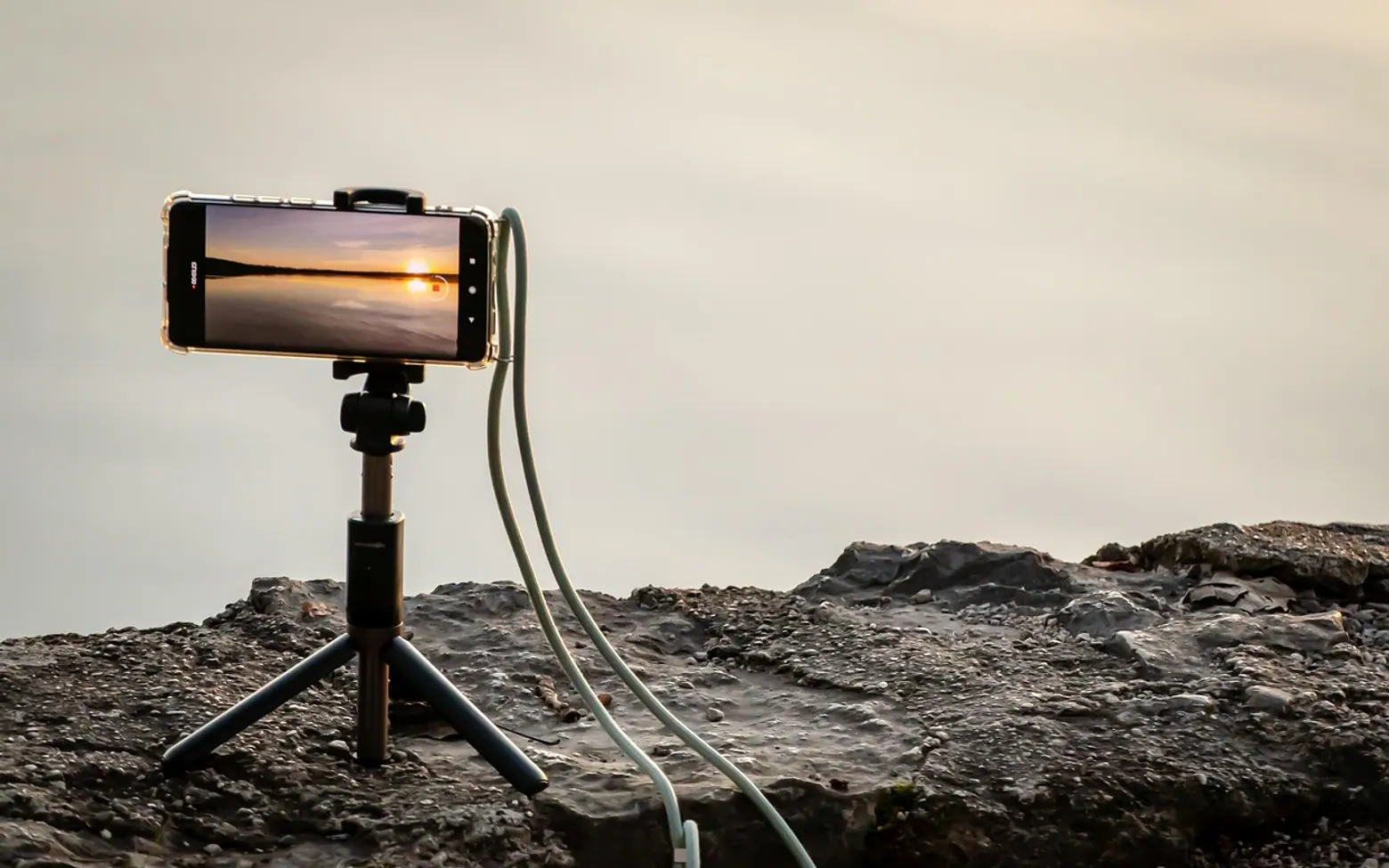
Aspect ratio is the relationship between the width and the height of an image or video, written as two numbers separated by a colon. A 16:9 frame is 16 units wide for every 9 units tall, which is why it looks like a letterbox lying on its side. The ratio says nothing about sharpness, colour or file size. It only describes shape.
That one detail decides whether a clip fills a phone screen, sits between black bars on a television or loses the top of someone's head when it gets cropped for a feed. Settling it before filming saves a surprising amount of rework later.
Reading the numbers
The first number is always the width and the second is the height. Ratios are reduced to their simplest form, so a 1920 × 1080 pixel video and a 3840 × 2160 pixel video share the same 16:9 shape even though the second holds four times as many pixels. Sometimes the ratio is written as a single decimal against 1 instead: 16:9 works out at roughly 1.78:1, and wide cinema frames are often quoted as 2.39:1.
Two quick checks help when a spec sheet is confusing:
- If the first number is larger, the frame is landscape. If it is smaller, the frame is portrait.
- Equal numbers, as in 1:1, mean a perfect square.
The common ratios side by side
| Ratio | Shape | Typical pixel size | Where it shows up |
|---|---|---|---|
| 16:9 | Wide landscape | 1920 × 1080, 3840 × 2160 | Televisions, laptops, most online players, video calls |
| 9:16 | Tall portrait | 1080 × 1920 | Phone stories and short vertical clips |
| 4:3 | Boxy landscape | 1440 × 1080, 640 × 480 | Older television, many tablets, some webcams |
| 1:1 | Square | 1080 × 1080 | Feed posts meant to look the same on any device |
| 4:5 | Slightly tall | 1080 × 1350 | Portrait feed posts that claim more screen than a square |
| 2.39:1 | Very wide | Varies | Cinema releases; close to the ultrawide monitors sold as 21:9 |
Why 16:9 became the default
Widescreen television settled on 16:9 as a compromise between the older 4:3 picture and the much wider shapes used in cinemas. Both could be shown on a 16:9 screen with modest bars rather than enormous ones. Once flat-panel TVs, laptop displays and online players adopted the same shape, it became the safe choice for nearly any landscape video. Anything plugged into the back of a modern television, from a games console to a streaming stick, sends out a 16:9 picture as standard.
The rise of 9:16 vertical video
Phones spend most of their time held upright, so video made for them turned the widescreen frame on its end. A 9:16 clip fills the whole display without the viewer rotating the handset, which is why stories and short-form feeds favour it. The catch is composition. The frame is narrow, two people standing side by side barely fit, and text near the edges can vanish under the buttons, captions and profile names that apps lay over the picture.
Keep faces and important words inside the central part of a vertical frame and leave breathing room at the top and bottom. Many editing apps can display a safe-zone overlay while you arrange titles.
Letterboxing, pillarboxing and cropping
When a video and a screen disagree about shape, one of three things happens:
- Letterboxing adds black bars above and below, as when a wide film plays on a 16:9 TV.
- Pillarboxing adds bars at the sides, as when an old 4:3 programme or an upright phone clip plays on a widescreen display.
- Cropping or zooming fills the screen by cutting part of the picture away. The display looks full, but whatever sat outside the new frame is gone.
Some editors fill pillarbox bars with a blurred, enlarged copy of the same clip. It is a quick fix for showing a phone video in landscape, although a clean reframe usually looks more deliberate.
Choosing a ratio before you press record
The simplest rule is to shoot for the screen where most of the audience will watch. A few practical pointers:
- One clip, several destinations: film in 16:9 with generous space around the subject, then crop tighter versions for square or vertical posts. A 4K original leaves enough pixels to cut a sharp 1080 × 1920 slice out of the middle. Going from narrow to wide is much harder, because the missing picture was never recorded.
- Vertical-first projects: if the clip will only ever live on phones, hold the camera upright from the start so the full resolution goes into the frame you will actually use.
- Screens in shops and lobbies: plenty of digital display boards hang in portrait orientation, so a landscape advert may need its own tall version.
- Cutaway shots: extra footage filmed to cover edits should match the main footage's shape, a point covered in the guide to B-roll and cutaway footage.
Shape, resolution and frame rate are different settings
Three numbers tend to sit next to each other in camera menus, and they are easy to mix up. Resolution counts pixels, aspect ratio describes shape, and frame rate counts how many pictures appear each second. A 720p clip and a 4K clip can share the same 16:9 shape, and a 9:16 clip can be recorded at 24 or at 60 frames per second. All three affect how large the finished file becomes, but each one answers a different question.
Quick answers
Is 1080p the same thing as 16:9?
Not exactly. The label 1080p refers to a picture 1,080 pixels high. The familiar 1920 × 1080 version is 16:9, but an upright 1080 × 1920 clip is also loosely called 1080p, and its shape is 9:16.
What ratio do video calls use?
Most webcams and call apps send a 16:9 picture, though some older or budget cameras still default to 4:3. If your image looks boxed in on a widescreen display, the camera settings are the first place to check.
Can the aspect ratio be changed after filming?
Yes, by cropping or by adding bars in an editor. Cropping always throws picture away, so frame a little wider than feels necessary when you are unsure where the clip will end up.
Across the sections
Editor’s picks
 TechnologyAI Headshot Generators: The Fast Track to Professional-Looking Photos3 min
 BusinessEnhancing RAG Systems Through User Feedback2 min
 TechnologyWhat Is a Streaming Stick? A Plain Look at the Plug-In TV Gadget4 min
 BusinessFrom Nigeria to the World: Exploring Citizenship by Investment Programs Abroad3 min
Spotted a mistake?
Suggestions help us plan.
Reframe a clip for another screen
Start with the size you filmed at, pick the shape you need, and slide the frame to where the subject is. You will see the exact crop, how much picture survives and whether there are enough pixels left for a sharp export.
Crop sizes are rounded to whole pixels. The "typical size" comparison uses the common export sizes from the table above; individual apps may ask for something different, so check their current upload guidance.
Also explained in Creator Studio
 Creator Studio
 What Is a Jump Cut? J-Cuts, L-Cuts and Other Basic Video Edits
4 min Creator Studio
 What Is B-Roll? Cutaway Footage That Keeps Videos Watchable
4 min Creator Studio
 What Does Royalty-Free Mean? Music for Videos and Podcasts Explained
4 min Creator Studio
 Colour Correction vs Colour Grading: What Each Editing Step Does
4 min Creator Studio
 Three-Point Lighting for Video Calls: Key, Fill and Back Light at Home
5 min Creator Studio
 Dynamic vs Condenser Microphone: Choosing and Setting Up a Podcast Mic
5 min